Why Use Google Sheets for Personal Finances
How to Get Started
1 Connect Your Bank Accounts
Sign up for Finta and securely connect your bank accounts, credit cards, and investment accounts using Plaid (US/Canada) or GoCardless (Europe). Your credentials are never stored. All connections use bank-level encryption.
What gets synced:- Current account balances
- Transaction history (amount, date, merchant, category)
- Account metadata (type, institution, last 4 digits)
2 Create Your Google Sheets Destination
In Finta, create a new destination and select Google Sheets. Authorize access to your Google account and choose whether to create a new spreadsheet or connect to an existing one.
Finta will automatically create structured sheets for:
- Accounts - All connected accounts with current balances
- Transactions - Every transaction with date, amount, merchant, and category
- Balance History - Daily balance snapshots for trend tracking
3 Customize Your Spreadsheet
This is where Google Sheets shines. Start with one of our templates below, or build your own system:
Add Custom Categories Create a Categories sheet with your own taxonomy. Use Finta's Rules feature to auto-categorize transactions based on merchant name, amount, or other criteria. Build Your Dashboard Use SUMIF, QUERY, and pivot tables to create views that answer your key questions:- How much did I spend on food this month vs. last month?
- What's my average weekly spending?
- Am I on track for my savings goal?
4 Create Rules for Auto-Categorization
In Finta, set up Rules to automatically categorize transactions as they sync:
- "If merchant contains 'Uber Eats' then Category: Food Delivery"
- "If merchant contains 'Amazon' and amount > $100 then Category: Shopping (Large)"
- "If merchant contains 'Spotify' then Category: Subscriptions"
Rules run on every sync, so new transactions arrive pre-categorized and ready for analysis.
Best Practices
Tips for Success
Supported Banks
Finta connects to 12,000+ financial institutions across the US, Canada, and Europe.











Templates
Get started faster with our free Google Sheets templates. Each template is designed to work seamlessly with Finta's automatic bank sync.
Use the budget template for Google Sheets when you want a monthly plan, actual-spend review, and trends dashboard in one spreadsheet.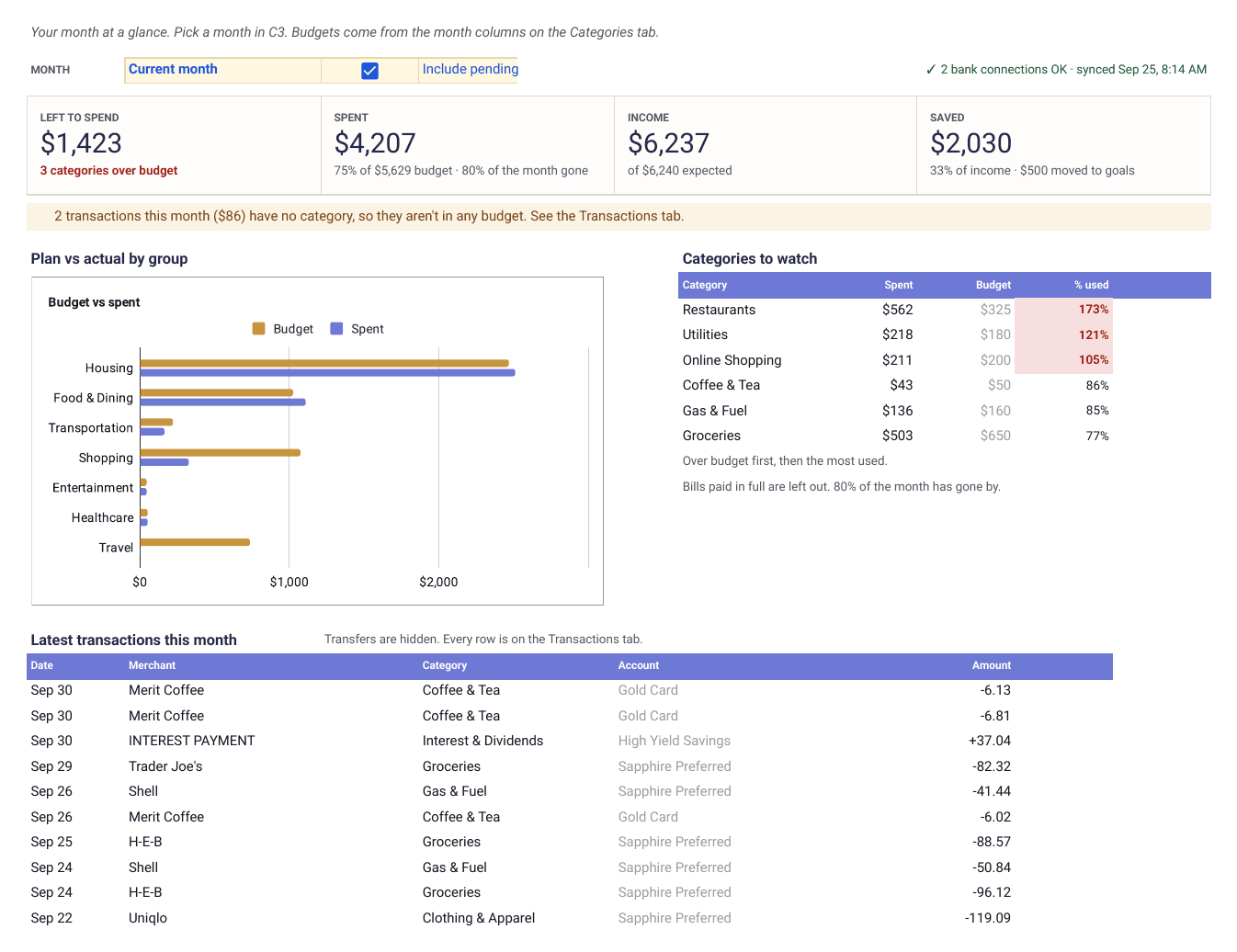
Free Google Sheets Budget Template with a Monthly Dashboard
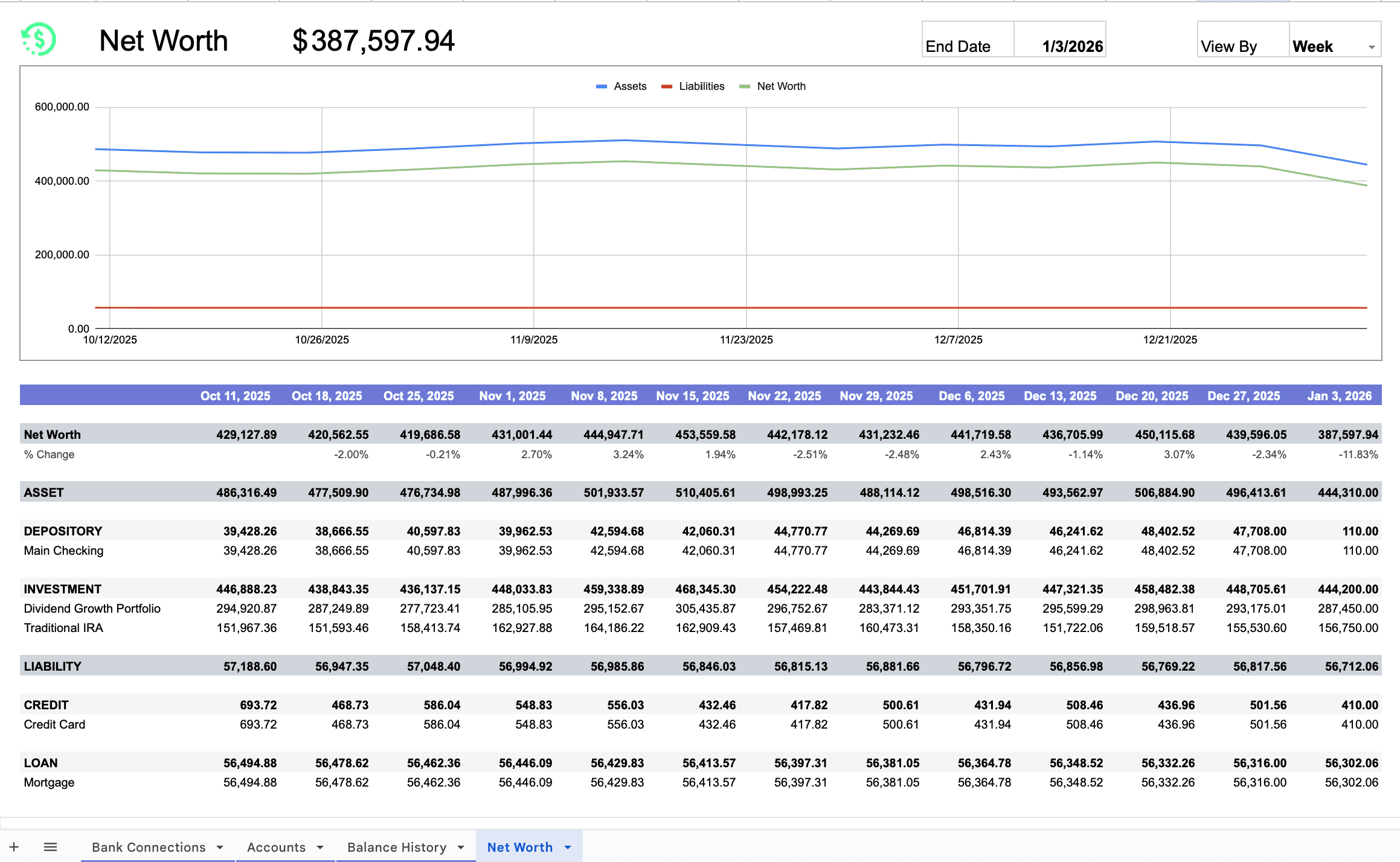
Free Net Worth Tracker for Google Sheets (2026)
Frequently Asked Questions
Is my bank data secure?
Yes. Finta uses Plaid (the same provider used by Venmo, Coinbase, and Robinhood) for US and Canadian banks, and GoCardless for European banks. Your bank credentials are never stored by Finta. All connections use bank-level 256-bit encryption.
How often does data sync?
It depends on the connection. Plaid syncs when the institution reports new activity, while GoCardless follows a bank-specific schedule with no scheduled gap longer than 24 hours. You can also trigger manual syncs from the dashboard.
Can I track multiple bank accounts?
Yes. Connect as many accounts as you need, including checking, savings, credit cards, and investment accounts. All transactions flow into the same Google Sheet for a unified view.
What if a transaction is categorized incorrectly?
You can manually re-categorize any transaction in your spreadsheet. Even better, create a Rule in Finta so similar transactions are auto-categorized correctly in the future.
Do I need to know advanced formulas?
No. Our templates work out of the box with basic spreadsheet knowledge. But if you want to customize, Google Sheets' formula library is there when you need it.
Can I share my spreadsheet with a partner or advisor?
Yes. Use Google Sheets' standard sharing features to give view or edit access to anyone. Your Finta sync will continue updating the sheet regardless of who has access.
What happens if I cancel Finta?
Your Google Sheet and all historical data remain yours. Automatic syncing stops, but you keep everything that's already been synced.
Ready to Automate Your Finances?
Stop manually entering transactions. Connect your bank accounts to Google Sheets with Finta and spend your time analyzing your finances, not updating spreadsheets.